PLOSSYS 4 Panel Customization
Introduction
The panel configuration depends on the backend system and the connector. This page describes the configuration of the PLOSSYS 4 panel. Configure the other panels accordingly.
Hint - Linux instructions
This instruction covers the customization under Windows. For the respective Linux instructions, refer to PLOSSYS 4 Panel Customization.
The PLOSSYS 4 panel pre-configuration contains some standard parameters but is normally not sufficient for replacing an existing P2P or PAD installation for example.
The default configuration of the PLOSSYS 4 panel can be found at the following directory:
%PROGRAMFILES%\SEAL Systems\seal-operator-p4\lib\defaultConfig
It consists of two files:
-
panel.jsonfor panel and job assignment parameters: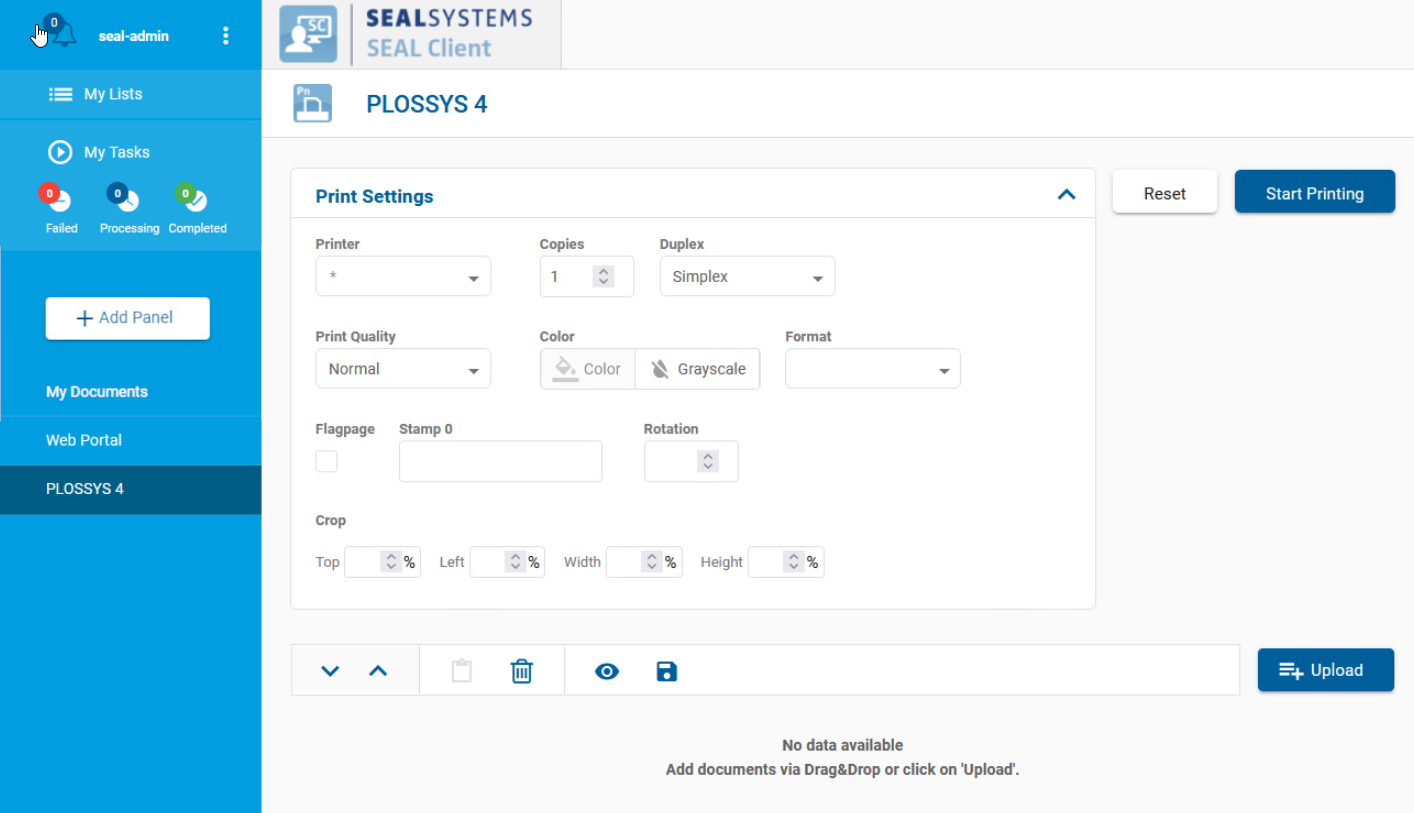
-
settings.jsonfor the default values displayed in theServer Settings: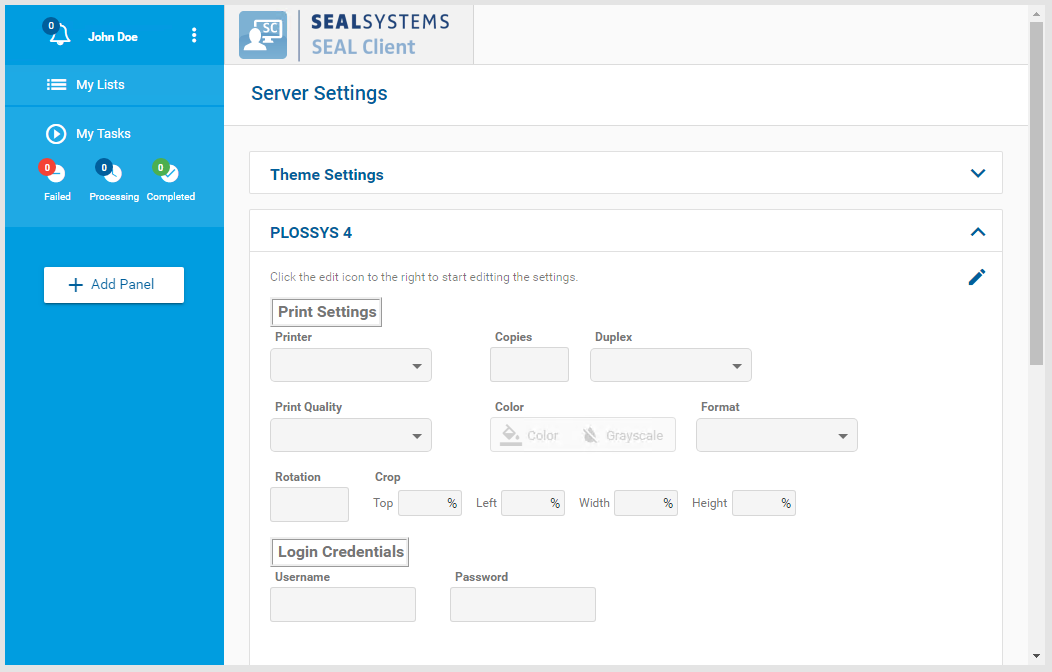


Create Custom Configuration Files
To prevent your settings from being overwritten by an update, create a customer directory for your custom configuration. Adding the customer name to the file name is also recommended. Finally, the custom configuration files need to be specified in the corresponding keys DEFAULT_P4_PANEL and DEFAULT_P4_SCHEMA.
Step by step instructions:
-
Copy the default configuration files to a customer directory with a customized name:
copy "%PROGRAMFILES%\SEAL Systems\seal-operator-p4\lib\defaultConfig\panel.json" <customer_dir>\panel-<customer_name>.jsoncopy "%PROGRAMFILES%\SEAL Systems\seal-operator-p4\lib\defaultConfig\settings.json" <customer_dir>\settings-<customer_name>.json -
Export the complete configuration of SEAL Operator from Consul to a YAML file. This ensures that you edit the current configuration.
operator config export <filename>.yml --insecure -
Edit the exported file
<filename>.yml. -
In the
envsection, specify the following keys for theseal-operator-p4service in theoperator-p4section:-
ACTION_EXECUTOR: mandatory, backend system, hereP4 -
DEFAULT_P4_PANEL: optional, path to the JSON file containing the configuration of the panel -
DEFAULT_P4_SCHEMA: optional, path to the JSON file containing the default values of the PLOSSYS 4 connector -
PLOSSYS_URL: mandatory, URL of the connected PLOSSYS 4 system
env:
  service:
  ...
    operator-p4:
      tag:
        any:
          ACTION_EXECUTOR: P4
          DEFAULT_P4_PANEL: '<customer_dir>/panel-<customer_name>.json'
          DEFAULT_P4_SCHEMA: '<customer_dir>/settings-<customer_name>.json'
          PLOSSYS_URL: 'https://<plossys_4_server_name>:3011'
  ...
Literature - keys
For further information about available keys, refer to the Key Reference.
-
-
Save the
<filename>.ymlfile. -
Re-import the file to Consul.
operator config import <filename>.yml --insecure -
Check the imported value for
DEFAULT_P4_PANEL:operator config get DEFAULT_P4_PANEL --service operator-p4 --insecure
Change Configuration
The two panel configuration files have similar structures. For a correct configuration, change both files accordingly.
Caution - JSON structure
Pay attention to keep the JSON structure in the panel configuration files! For further information, refer to the JSON Schema.
Hint - JSON syntax check and file encoding
With online validation tools such as https://jsonlint.com/ you can check the syntax of your JSON file. However, the validation tools are not able to check if the semantic is correct.
Make sure the configuration files are encoded in UTF otherwise special characters are not displayed correctly. HTML entities are not supported.
Use Version ID and Package Number
The panel configuration files are customer-specific. For this, using a version ID and a package number makes sense. The keys version and package are available for this purpose.
{
  "name": "PLOSSYS 4",
  "type": "print",
  "pid": "f75bf1b0-6920-41cb-9fc8-a88191710f41",
  "version": "$Id: $",
  "package": "$Package: $",
  ...
}
Change the Parameters
The PLOSSYS 4 (p4) connector uses internal parameters as header parameters for PLOSSYS 4 and maps some often used parameters. For example, Duplex is mapped to PLS_DUPLEX. For a complete list of the mappings, refer to the SEAL Operator JSON Schema.
Here, you find some examples of common changes:
-
Enable B/W Color Mode additionally to
ColorandGrayscale
Restart the Services
After changing the configuration files, restart the following services:
-
seal-operator-p4 -
seal-operator-server
operator service start seal-operator-p4 seal-operator-server