General UI Settings
With the general UI settings, you adapt the user interface of SEAL Operator to your users. For example, you hide parts of the user interface or specify the panel that opens by default.
User Interface Elements
Many parts of the user interface can be hidden.
Here, you see the parts of the menu at the left:
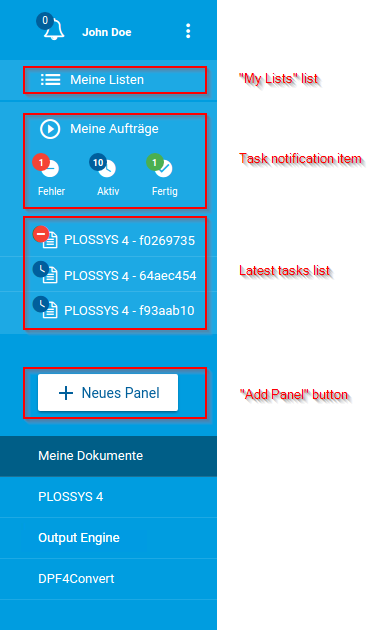
In SEAL Operator, configure the keys for the user interface:
-
Export the complete configuration of SEAL Operator from Consul to a YAML file. This ensures that you edit the current configuration.
operator config export <filename>.yml --insecure -
Edit the exported file
<filename>.yml. -
In the
envsection, specify the corresponding key for theseal-operator-uiservice in theoperator-uisection:-
CLOSE_PANEL_AFTER_START_TASK: optional, specifies if the task panel is closed after starting the task -
DEFAULT_PANEL: optional, panel that is opened when opening the user interface and no panel yet exists -
DETAILS_DISABLE_METADATA: optional, availability of the metadata editor in the details panel of the active panel -
DETAILS_DISABLE_TOOLBAR: optional, availability of the toolbar in the details panel of the active panel -
DISABLE_ADD_FAVORITE: optional, availability of the button for adding a favorite panel -
DISABLE_ADD_PANEL: optional, availability of theAdd Panelbutton -
DISABLE_LATEST_TASKS: optional, availability of the latest tasks list -
DISABLE_MESSAGES: optional, availability of the message panel -
DISABLE_MY_LISTS_ACCESS: optional, availability of theMy Listslist -
DISABLE_REMOVE_PANEL: optional, availability of the button for removing a panel -
DISABLE_TASK_NOTIFICATIONS: optional, availability of the task notification item -
HIDE_LEFT_MENU: optional, specifies if the left menu is open or closed at the start -
PANEL_DISABLE_ACTIONS: optional, standard actions to be disabled in the active panel -
PANEL_DISABLE_DROP_AREA: optional, availability of the file drag&drop area in the active panel -
PANEL_DISABLE_METADATA: optional, availability of the metadata editor in the active panel -
PANEL_DISABLE_START_BUTTON: optional, availability of theStart PrintingorStart Convertingbutton in the P4, Output Engine, and DPF panels -
PANEL_DISABLE_STATUS: optional, visibility of the panel status of the active panel
Example - hide all parts of the left menu that can be hidden and set a default panel
env: service: operator-ui: tag: any: ... DEFAULT_PANEL: operator-dpf DISABLE_MY_LISTS_ACCESS: true DISABLE_TASK_NOTIFICATIONS: true DISABLE_LATEST_TASKS: true DISABLE_ADD_PANEL: true ... -
-
Save the
<filename>.ymlfile. -
Re-import the file to Consul.
operator config import <filename>.yml --insecure -
Check the imported value of a key you have set, for example
DEFAULT_PANEL:operator config get DEFAULT_PANEL --service operator-ui --insecure -
Close the user interface and open it again.
Literature - keys
For further information about available keys, refer to the Key Reference.
Printer Lists
As of version 1.5.0, SEAL Operator allows the user to customize their printer lists with favorites. To mark a printer as a favorite, click the star next to it in the printer list. The marked printer is pinned at the top of the list. To revert it, click the star next to the printer again.
This can be done in the PLOSSYS 4 and PLOSSYS Output Engine panels as well as via the settings menu.