Connect the Web Portal
Introduction
Web Portal allows you to create collections of files to share them with others. These collections are called shares. The creator and owner of a share is the only one that has the ability to edit or delete the share, or to update the list of its files. The owner can also invite other users to it or restrict the access.
Invited users can only view and download the files within the share, without having the ability to edit the shared content.
Shares can be created not only manually but also automatically by a PLOSSYS 4 printer.
Web Portal functionality also includes optional email notifications when a share gets contributed or accessed. These notifications can be disabled on a share-by-share basis. Email integration is optional for the Web Portal. If it is not configured, Web Portal does not send emails.
Keycloak Configuration
If you are using an already existing Keycloak, execute the following steps to add the needed client and obtain the client secret.
Hint - SEAL Keycloak installation
SEAL Keycloak installation comes with a preconfigured client named seal-webportal for SEAL Web Portal. When using it, go to your Keycloak Admin Console. Under Clients select the seal-webportal client and continue with step 3 of the instructions below.
-
Open Keycloak.
-
Select the
SEALrealm in the dropdown menu on the top left.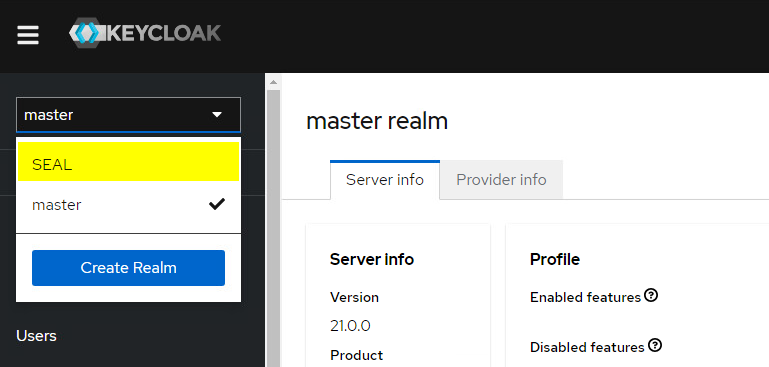
-
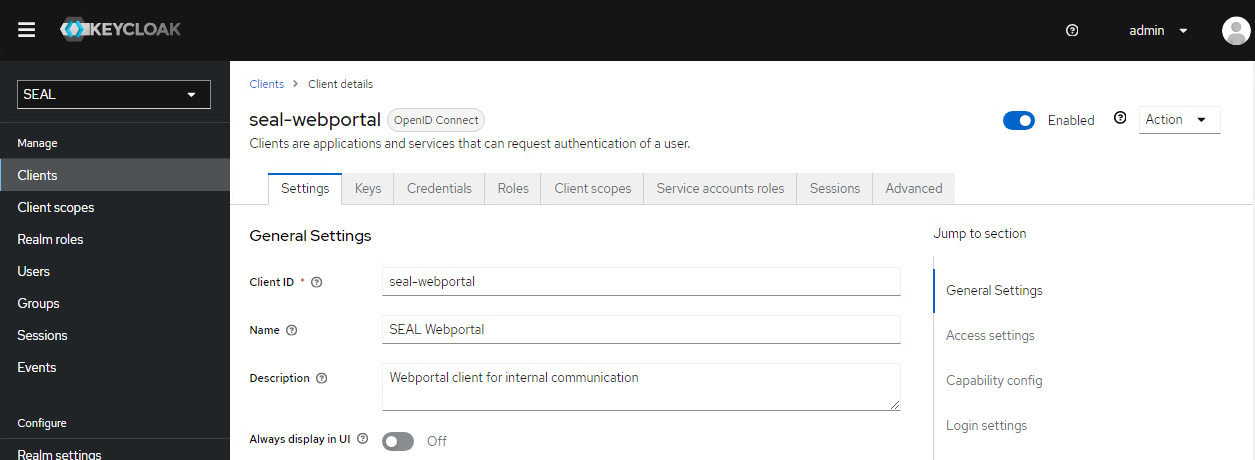
Check if the
seal-webportalclient exists. Otherwise create it with the following settings.-
General Settings:-
Client ID:seal-webportal -
Name:SEAL Webportal -
Description:Webportal client for internal communication
-
-
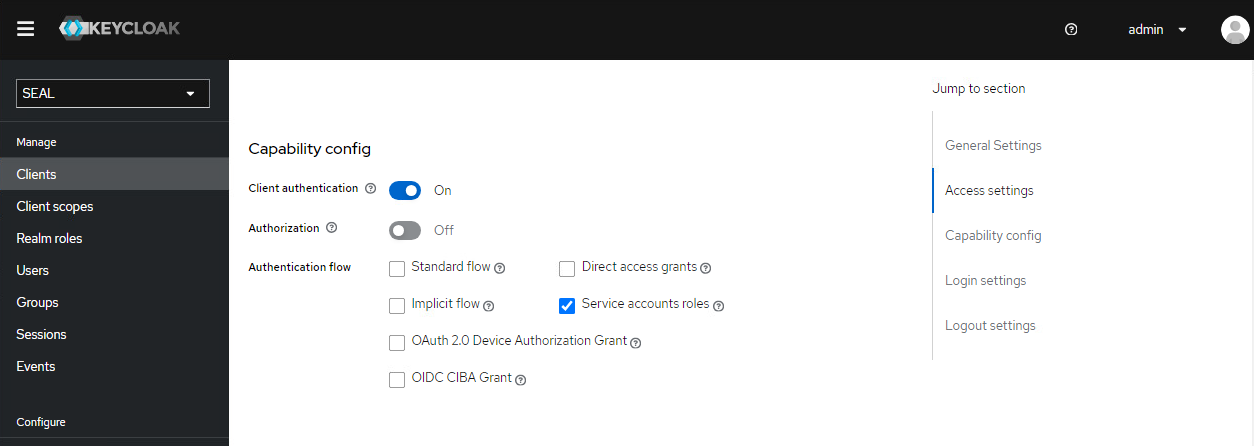
Capability Config:-
Client authentication:ON -
Standard Flow:OFF -
Implicit Flow:OFF -
Direct Access Grants:OFF -
Service Account Roles:ON
-
Click
Saveto save the client. -
-
Switch to the
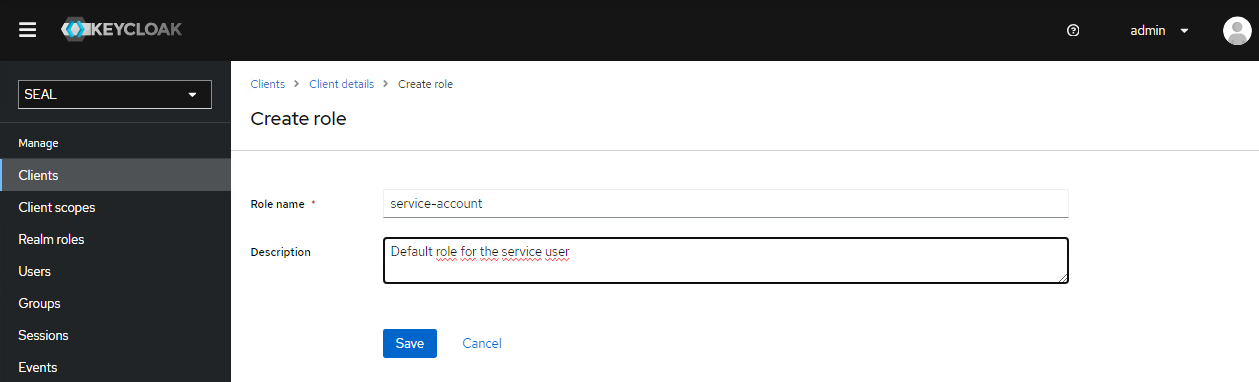
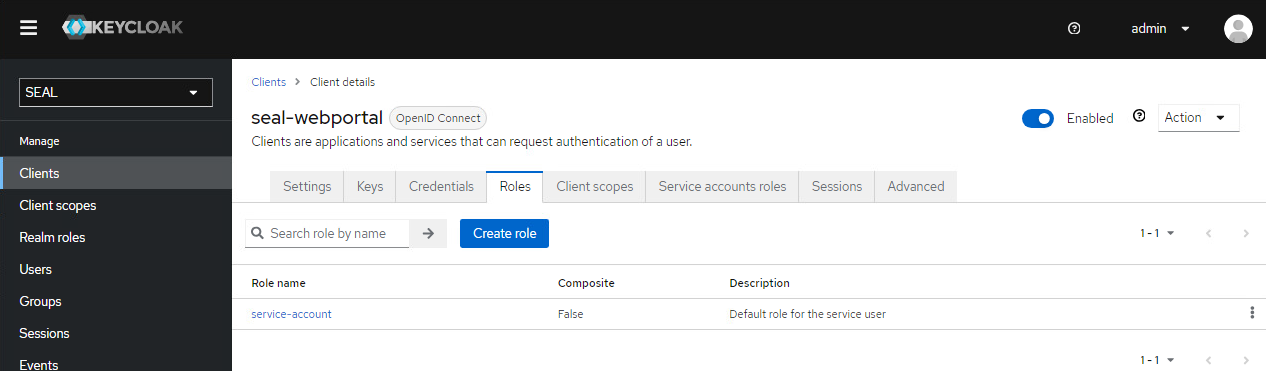
Rolestab for theseal-webportalclient. If the roleservice-accountdoes not exist yet, presscreate roleand add it with the following values: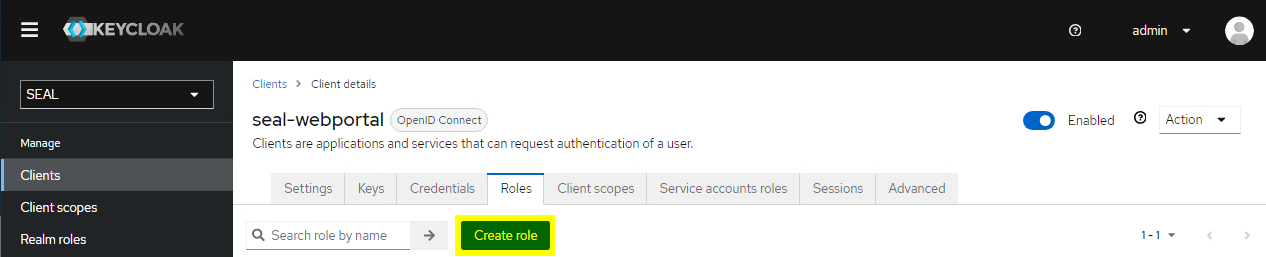
-
name:service-account -
description:Default role for the service user
-
-
Go to the
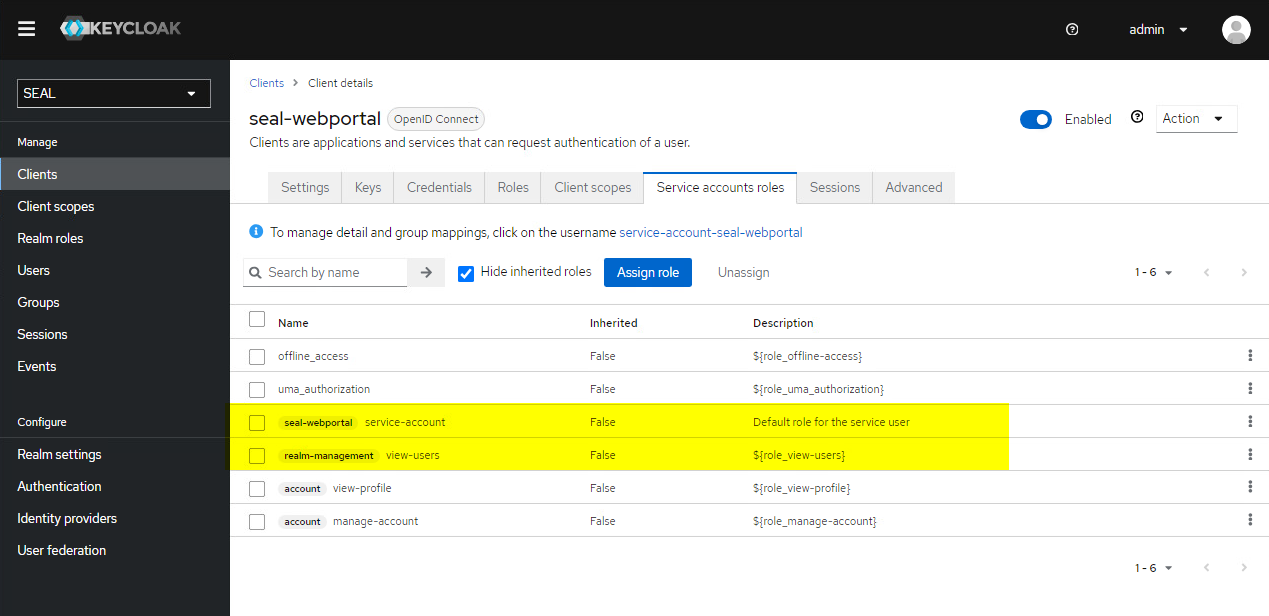
Service accounts rolestab for theseal-webportalclient. Assign the following roles to the client, if they are not already in the list:-
seal-webportal > service-account- used byALLOWED_OIDC_CLIENTS -
realm-management > view-users- used to convert user emails to Keycloak UUIDs
To do so, click
Assign roleand changeFilter by realm rolestoFilter by clients. Select the roles and confirm withAssign.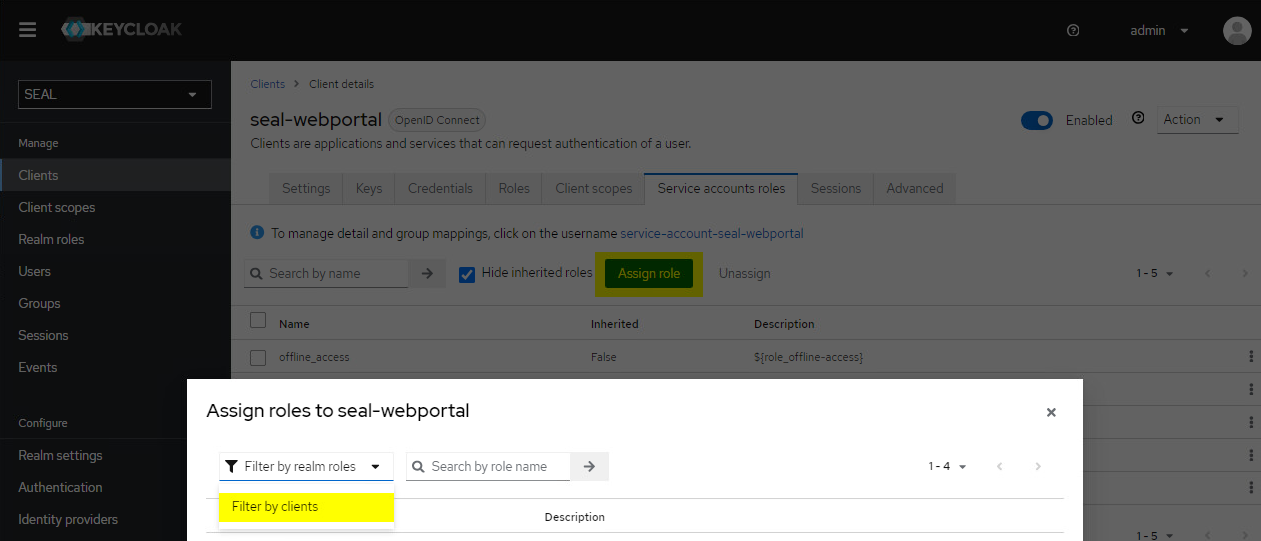
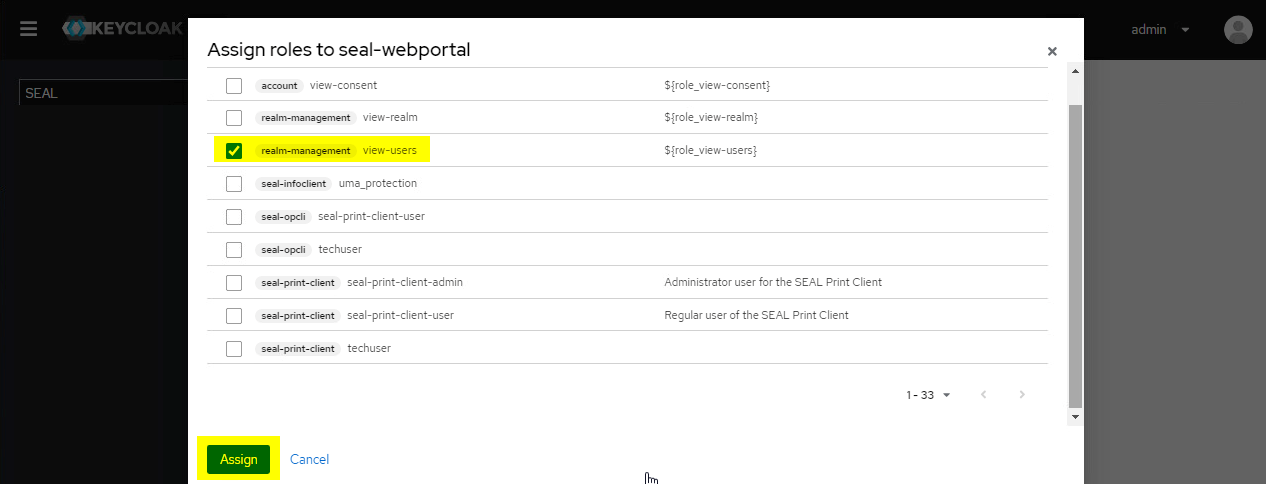
The final view should look like this:
-
-
Change to the
Credentialstab and copy the client secret for theseal-webportalclient. You need it to configure the Web Portal connector next.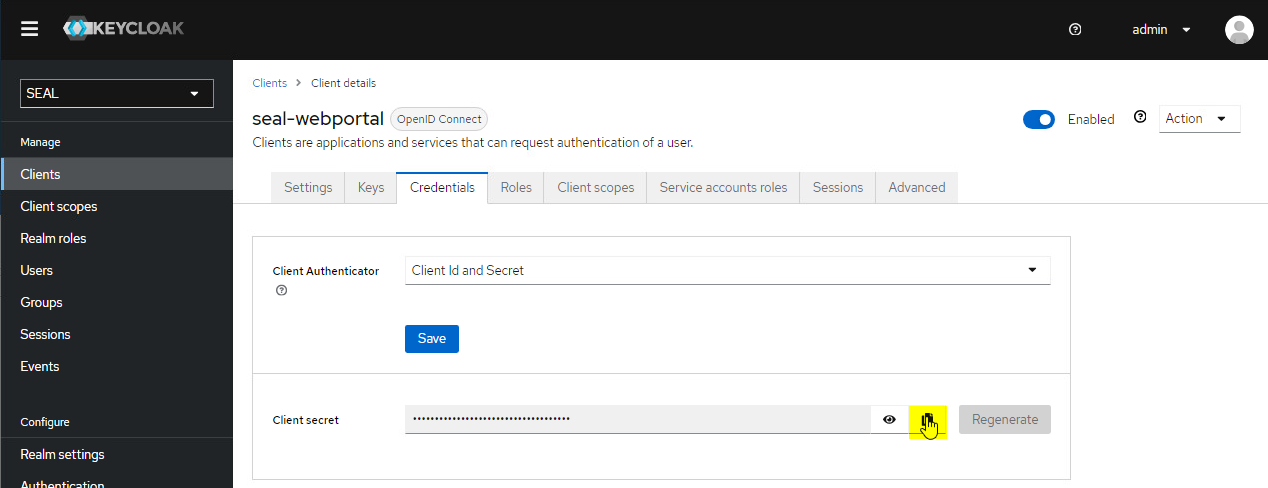









Configure the Connector
In SEAL Operator, activate the connector and specify the keys for the connection:
-
Open a command prompt.
-
Export the complete configuration of SEAL Operator from Consul to a YAML file. This ensures that you edit the current configuration.
operator config export <filename>.yml --insecure -
Edit the exported file
<filename>.yml. -
In the section of the
webportalconnector, setcstatustoon.operator: connectors: ... webportal: cstatus: 'on' serviceName: operator-webportal url: 'https://localhost:3019' ... -
In the
envsection, specify the following keys for theseal-operator-webportalservice in theoperator-webportalsection as needed:-
AUTH_PROVIDER: optional, type of authentication provider,keycloak,generic, orazure_ad -
KC_ADMIN_BASE_URL: mandatory ifkeycloakis specified asAUTH_PROVIDER, Keycloak auth endpoint URL -
KC_ADMIN_TARGET_REALM: optional, Keycloak realm name ifkeycloakis specified asAUTH_PROVIDER -
LOG_LEVEL: optional, log level of theseal-operator-webportalservice -
MONGO_SERVER_URL: optional, URL of the MongoDB -
OPERATOR_SERVER_URL: mandatory, URL of the Operator server -
STORAGE_SERVICE_NAME: optional, name of the service that stores the entries with their associated content -
WEBPORTAL_CLIENT_ID: mandatory, client ID for retrieving access tokens as defined in Keycloak, for exampleseal-webportal -
WEBPORTAL_CLIENT_SECRET: mandatory, client secret for retrieving access tokens for the filestore as defined in Keycloak
env:
  service:
  ...
    operator-webportal:
      tag:
        any:
          AUTH_PROVIDER: keycloak
          KC_ADMIN_BASE_URL: https://localhost:32769
          KC_ADMIN_TARGET_REALM: SEAL
          LOG_LEVEL: debug
          MONGO_SERVER_URL: mongodb://localhost:27017/operator-webportal
          OPERATOR_SERVER_URL: https://localhost:3008
          STORAGE_SERVICE_NAME: operator-fileupload
          WEBPORTAL_CLIENT_ID: seal-webportal
          WEBPORTAL_CLIENT_SECRET: <client_secret>
  ...
Hint - changed URL as of Keycloak 21.0.1
As of SEAL-specific Keycloak version 21.0.1, the URL needed for
KC_ADMIN_BASE_URLhas changed. For the old and new values, refer to the key description.Literature - keys
For further information about available keys, refer to the Key Reference.
Hint - storage backend configuration
Web Portal does not store file contents on its own. The files belonging to shares are stored by the service specified in
STORAGE_SERVICE_NAME, which by default is theoperator-fileuploadservice. The storage backend for file contents is either MongoDB or S3. You configure it in the corresponding storage service, not in Web Portal. For more information, refer to the Fileupload Connector documentation: -
-
Save the
<filename>.ymlfile. -
Re-import the file to Consul.
operator config import <filename>.yml --insecure -
Check the imported value, for example for
OPERATOR_SERVER_URL:operator config get OPERATOR_SERVER_URL --service operator-webportal --insecure
Large Files and Storage Backend
With SEAL Web Portal, you can upload and share large files. SEAL Operator itself enforces no hard limit on the maximum file size. Some environments must handle multi-GB uploads or a high number of concurrent uploads. For these environments, the recommended backend for file contents is Simple Storage Service (S3) instead of MongoDB. You configure the storage backend in the operator-fileupload service. For details on how to configure S3 as storage backend, refer to:
- Linux: Simple Storage Service (S3)
- Windows: Simple Storage Service (S3)
Configure Roles (Optional)
The permissions of the seal-webportal OIDC client are configured with ALLOWED_OIDC_CLIENTS. For example, this allows a technical user to create Web Portal shares on behalf of a real user. The key does not apply to the operator-webportal service itself.
For the available keys, values, and examples, refer to Configure Roles.
Enable Public Link Access to Shares (Optional)
By default, access to shares created is limited to users of the OIDC identity provider. If you want to enable read access for anyone with the link, execute the following steps.
-
Open a command prompt.
-
Export the complete configuration of SEAL Operator from Consul to a YAML file. This ensures that you edit the current configuration.
operator config export <filename>.yml --insecure -
Edit the exported file
<filename>.yml. -
In the
envsection, specify the following keys for theseal-operator-webportalservice in theoperator-webportalsection:ALLOW_SHARED_ENTRIES: mandatory, specifies if public Web Portal shares are enabled. Set it totrue.
env: service: ... operator-webportal: tag: any: ALLOW_SHARED_ENTRIES: true ... -
In the
envsection, specify the keyPUBLIC_SERVICESfor theoperator-serverservice. Set its value to'operator-webportal'. If the key already contains a value, extend it. The key accepts comma-separated string values.env: service: ... operator-server: tag: any: PUBLIC_SERVICES: 'operator-webportal' ... -
Save the
<filename>.ymlfile. -
Re-import the file to Consul.
operator config import <filename>.yml --insecure -
Check the imported value, for example for
ALLOW_SHARED_ENTRIES:operator config get ALLOW_SHARED_ENTRIES --service operator-webportal --insecure
Set Up Email Service (Optional)
Web Portal supports email notifications that get sent through the seal-email-service. Users get an email when they get access to a new share, or when someone accesses a share that they own.
Notifications can be disabled on a per-share basis, via the Web Portal panel in the SEAL Operator user interface.
To enable this functionality you need to specify the mail server in the email-service settings:
-
Open a command prompt.
-
Export the complete configuration of SEAL Operator from Consul to a YAML file. This ensures that you edit the current configuration.
operator config export <filename>.yml --insecure -
Edit the exported file
<filename>.yml. -
In the
envsection, specify the following keys for theseal-email-serviceservice in theemail-servicesection:EMAIL_FROM: Sender email addressSMTP_PASSWORD: Password for the SMTP user specified inSMTP_USERNAMESMTP_PORT: Port of the SMTP serverSMTP_SERVER: SMTP server nameSMTP_USERNAME: SMTP user name
env: service: ... email-service: tag: any: EMAIL_FROM: webportal@example.com SMTP_PASSWORD: <smtp_password> SMTP_PORT: 25 SMTP_SERVER: <smtp_server> SMTP_USERNAME: webportal@example.com ... -
In the
envsection, specify the following keys for theseal-operator-webportalservice in theoperator-webportalsection:-
EMAIL_SERVICE_URL: mandatory, URL of the email service used for Web Portal notification emails. -
SHARE_ACCESSED_HTML: mandatory, HTML of the email sent to the owner of a share when it gets accessed by an assigned user for the first time. -
SHARE_ACCESSED_SUBJECT: mandatory, subject of the notification email to be sent when a share gets accessed for the first time by an assigned user. -
SHARE_ACCESSED_TEXT: mandatory, text of the email sent to the owner of a share when it gets accessed by an assigned user for the first time. -
SHARE_ASSIGNED_HTML: mandatory, HTML of the notification email sent to the assigned users of a share. -
SHARE_ASSIGNED_SUBJECT: mandatory, subject of the notification sent to the assigned users of a share. -
SHARE_ASSIGNED_TEXT: mandatory, plain text of the notification email sent to the assigned users of a share. -
UI_BASE_URL: optional, URL of the Web Portal UI. Set it only if an email template uses the{shareLink}placeholder and the automatic detection of this URL might fail. This applies, for example, when a batch process creates the shares.
Hint - priority of HTML over TEXT key
For each notification type, the corresponding
SHARE_..._HTMLkey has a higher priority than theSHARE_..._TEXTkey. If aSHARE_..._HTMLkey is configured, only the HTML template is used and theSHARE_..._TEXTkey is ignored. TheSHARE_..._TEXTtemplate is only evaluated if noSHARE_..._HTMLkey is set.Hint - usage of placeholders
The following placeholders are available:
-
{expirationDate}: Expiration date of the share. Only available forSHARE_ASSIGNED_HTMLandSHARE_ASSIGNED_TEXT. -
{shareId}: ID of the share. For the structure of public and private links refer to the examples forSHARE_ASSIGNED_TEXTin the key reference. To send both public and private links to shares, use the{shareLink}placeholder instead. -
{shareLink}: Automatically generated link to the share. For a private share, the link is private. For a public share, the link is public. -
{shareName}: Name of the share given by the creator of the share. -
{userName}: Name of the user who accessed the share. If the user's name is not available, for example forgenerictypeAUTH_PROVIDER, the email address is used instead. Only available forSHARE_ACCESSED_HTMLandSHARE_ACCESSED_TEXT.
Hint -
UI_BASE_URLkeyThe
{shareLink}placeholder evaluates the value of theUI_BASE_URLkey to generate the final URL that is inserted into the email. Links in notification emails might point to the wrong host, for example tolocalhostinstead of the Operator server. In this case, check and correct theUI_BASE_URLconfiguration.env: service: ... operator-webportal: tag: any: SHARE_ASSIGNED_SUBJECT: 'Share assigned' SHARE_ASSIGNED_TEXT: 'Hello! You received access to share: "{shareName}". You can access it via this link: {shareLink}.' SHARE_ASSIGNED_HTML: '<h1>Hello!</h1> <div><p>You received access to share: <b>{shareName}</b>.</p> <p>You can access it via this link: {shareLink}.</p></div>' EMAIL_SERVICE_URL: https://localhost:3030/v1 SHARE_ACCESSED_SUBJECT: 'Share accessed!' SHARE_ACCESSED_TEXT: 'Hello! {userName} accessed the share: "{shareName}". You can access the share via this link: {shareLink}.' SHARE_ACCESSED_HTML: '<h1>Hello!</h1> <div><p>{userName} accessed the share: <b>{shareName}</b>.</p> <p>You can access the share via this link: {shareLink}</p></div>' UI_BASE_URL: https://<operator_server>:3000 ... -
-
Save the
<filename>.ymlfile. -
Re-import the file to Consul.
operator config import <filename>.yml --insecure -
Check the imported value, for example for
EMAIL_SERVICE_URL:operator config get EMAIL_SERVICE_URL --service operator-webportal --insecure
Create Shares
Shares can be created manually in the Web Portal panel of the user interface.
Additionally, in PLOSSYS 4, you can output documents directly to an on-the-fly created Web Portal share.
For detailed instructions, refer to Create Web Portal Shares.